Free LinkedIn Boolean Search Generator:
Find Leads Faster
See the right people in LinkedIn or Sales Navigator and spend less time sorting through profiles.
This is an example. Change the answers to match the people you’re looking for.
What the
calculator does
You enter job titles, keywords, and companies. The generator turns them into one line of text for the LinkedIn search box. This is called a Boolean search: the words AND, OR, and NOT decide exactly who appears in the results.
The tool puts the quotes and parentheses in the right places and checks for common mistakes. Then it shows which field to use in LinkedIn or Sales Navigator. It uses only officially supported operators, as listed in LinkedIn Help.
When to use the generator
Prospecting
Before you build a lead list
Turn the roles and industries
you sell to into a ready search
in seconds.
Targeting
When your results are too broad
Remove profiles outside your market, so every invitation goes to a potential buyer.
Hiring
When you’re looking for candidates
Search by position and skills, and skip profiles that don’t fit.
Switching
When you move a search to Sales Navigator
The tool shows which part belongs in Keywords, Current job title, or Current company.
Job titles
When one role has many names
VP Sales, Head of Sales, and Sales Director can be the same buyer. Add them all in one click.
How to use it
Tips for better searches and more replies
Find people in the role now
Keywords in Sales Navigator also match past jobs. Use the Current job title filter to reach people who hold that position today.
Keep your Boolean search short
A very long one can return fewer results or get cut off. Stick to the titles that matter most, and run the rest separately.
Check what NOT takes out
NOT removes any profile with that word. For example, NOT assistant also hides “Assistant Vice President”, so review what’s left before saving.
Turn the search into a campaign
Copy the link to your LinkedIn or Sales Navigator results and add it to Dripify. It imports them and starts the outreach automatically.
Grow your list weekly
On the Advanced plan, Dripify’s Evergreen upload checks your Sales Navigator search and adds the latest matches to the campaign automatically, without duplicates.
See what works
When the list fits your ideal customer, more people say yes to your invitation. Reports in Dripify show acceptance and reply rates, so you know which search to reuse.
Frequently Asked Questions
Type your terms in the search box and join them with AND, OR, or NOT, in capital letters. Put phrases in quotes and group words with parentheses, for example: (“VP Sales” OR “Head of Sales”) AND SaaS NOT recruiter. Then add location and other filters from LinkedIn’s menus.
There are five: quotes for an exact phrase, AND, OR, NOT, and parentheses to group terms. Write the three words in capitals, because in lowercase LinkedIn reads them as normal text. Wildcards (*) and the + and – signs don’t work.
Yes. In Lead search, paste it into the Keywords or Current job title field. For companies, use Company name in Account search. Filters you pick from a list, like industry or location, don’t accept it.
Usually it’s one of three things. AND, OR, or NOT is in lowercase, so LinkedIn reads it as a regular word. A quote mark or parenthesis is missing. Or the exclusions are so broad that almost nobody is left. The generator checks for all of these as you type.
Yes. Choose People search, add the job titles and skills you’re hiring for, and leave out words like intern or student. The result works in the main search box and in LinkedIn Recruiter.
More free tools
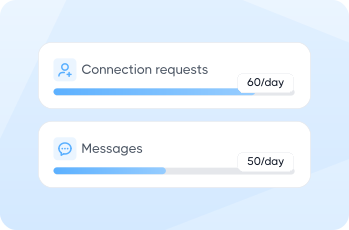
 When you’re guessing at your daily limits
LinkedIn Outreach Limits Calculator
See how many connection requests and messages your account can safely send in a day – before LinkedIn decides for you.
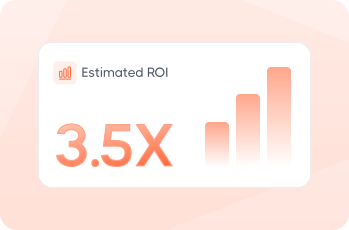
When you need to show sales ROI
Sales Team ROI Calculator
Turn headcount, quota, and cost per rep into a return figure – before the budget conversation, not after.
More to read: