
Run multichannel drip campaigns that book meetings
Create drag-and-drop outreach sequences with LinkedIn and email actions, all connected through flexible conditions in one simple builder















Had used Dripify before as well, and couldn’t stop vouching for it to my Senior. Dripify is that one tool which can make your Outbound Prospecting seamless. Excellent features, great UI/UX, and greater Onboarding + Support.




Dripify is a lifesaver. I thought I’ve seen it all in the past…Until I saw the suite of tools available with Dripify!












I’ve been using Dripify for four months and have found it very effective in building my network at a pace that I could not have imagined and to engage with new connections. The interface is easy to use and building campaigns and sequences is great.






Multichannel outreach, made simple
Go from zero to a live drip campaign in about 10 minutes with a simple step-by-step flow built to reach the right prospects with the right message at the right moment
Import leads
Add leads from various sources, including LinkedIn search pages, LinkedIn events, groups, ‘My Network,’ or CSV files
Create a sequence
Customize your drip campaign with a selection of LinkedIn and email actions, delays, and triggers – all within an intuitive and easy-to-use control panel
Personalize every touchpoint
Use 15+ variables in your multichannel outreach sequence and add custom fields to make every message feel genuinely one-to-one
Summarize and launch
Now it’s time to make it happen! Review your campaign settings, define the conditions for adding leads, configure integrations, launch your drip campaign – and watch the leads roll in!
Double your chances of a reply
Use LinkedIn and email together in one drip campaign, so you don’t lose a lead just because they ignored one channel
Join 40,000+ teams making drip campaigns embarrassinglyeasy
- No Credit Card Required
- First results in 48 hours
Build from winning templates
Start faster with proven templates for LinkedIn and email drip campaigns, then customize the flow, messaging, and channels to fit your goal






Ready to create your outreach sequence?
Set up multichannel prospecting in one afternoon and start turning LinkedIn and email outreach into closed deals during your 7-day free trial
10 people or more? Get a personalized introduction to Dripify
Explore what else you can do with Dripify
Discover other award-winning features of Dripify, the most trusted LinkedIn automation tool
Generate leads on LinkedIn
Reach the same leads on LinkedIn and book 3x more meetings than with email alone
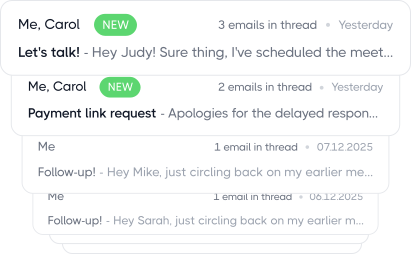
Automate cold emails
While LinkedIn automation is powerful, email outreach takes your prospecting even further by significantly expanding your reach
Find corporate emails
Discover pre-verified corporate email addresses for any LinkedIn leads with industry-leading accuracy

Frequently Asked Questions
Yes. Dripify lets you edit an active or paused campaign without restarting it; you can add new actions, add conditions, and remove certain steps, all while the campaign keeps running.
You can add actions like View Profile, Like a Post, Follow, Message, Endorse, or Unfollow at the very start of your sequence or drop them in between existing steps.
You can add new actions or conditions to an existing branch, but complex actions and conditions can only be added at the end of that branch. To add those, remove the End of Sequence step first. After it’s removed, you can continue adding new follow-ups, including for leads who’ve already completed that branch.
Removing actions works too, but with a few guardrails:
- Only simple, non-branching actions can be removed (View Profile, Like a Post, Follow, Message, Endorse skills, and Unfollow)
- Conditions and more complex actions can’t be deleted
- At least one action has to remain in the sequence.
- Nothing takes effect until you hit Save
When you delete a step, it leaves behind a placeholder; you can either drop a compatible action into it or remove the placeholder entirely so leads flow straight through to the next step.
As for your leads, Dripify does its best to protect their progress. Anyone sitting on a deleted step automatically moves to the next one once you save, and leads that had previously failed on that step get automatically resumed so they can keep moving through the drip campaign.
You’ll see a confirmation explaining exactly how affected leads will be transferred before the change goes through.
You can add or remove actions, edit your message copy, adjust delays or settings, add more leads or remove existing ones, change webhook integration configuration, and rename a campaign, all without restarting it.
- Adding a step: Hover at the start of your sequence or between existing steps until the ➕ appears, pick an action, and hit Save. New steps show up with a dotted outline so you can see what’s changed.
- Removing a step: Hover over it and click the bin icon.
- Extending past the end: Delete the End of Sequence marker and add new actions in its place. Leads who’d already finished the sequence get pulled back in and continue through the new steps.
Before saving, Dripify checks a few things:
- Message, InMail, and Send Email actions can’t be left empty; each one needs actual text.
- Withdrawing an invitation and reconnecting with that person later requires at least a 21-day gap between the two.
- Every branch needs a proper ending; you can’t save a sequence with one left open.
One more thing: adding a step at the very start of a live campaign prompts Dripify to ask whether to move your queued “Getting ready” leads into it, so you stay in control of who passes through the new step.
Yes. You can “duplicate” a well-performing campaign by saving its sequence as a template. This lets you reuse the same logic with a new audience and build on what already worked.
On team plans, those templates can also be shared, which is handy when you want everyone working from the same sequence.
There are also 18+ pre-built drip campaign templates for different lead sources and outreach scenarios. Pick the one that’s closest to what you’re doing, tweak the messages and variables, and take it from there.
Yes. You can run multiple campaigns at the same time, whether you’re splitting outreach by audience, industry, or lead list. The only exception is the Basic plan, which is limited to one campaign at a time, so if you need more, upgrade to higher plans.
Just remember that your daily LinkedIn limits are shared across the whole account. They don’t reset for every campaign you create. So if you have 10 campaigns running, they’ll all be drawing from the same daily allowance of connection requests and messages.
In practice, that means adding more campaigns doesn’t give you more outreach volume. It simply spreads what you already have across more drip campaigns, which is why keeping them focused usually makes more sense.
Dripify gives you 15+ actions to build a sequence around, covering both LinkedIn and email automation. You can send a connection request, LinkedIn message, Sales Navigator InMail, or email, as well as Find an Email, View a profile, Follow or Unfollow someone, Like a post, Endorse skills, or Withdraw a pending invitation.
Then you’ve got conditions (if connected, if message viewed, if open profile, if email available), which decide what happens next based on what the lead actually does.
Did they accept your request? Reply to a message? Was their email found? You can send each outcome down a different path instead of building a separate campaign for every possibility.
And between those steps, you can add delays to decide how long Dripify should wait before moving on to the next action.
The Leads Queue shows you which leads are waiting at each stage of your sequence and why:
- Waiting to enter the sequence usually means you’ve hit your daily sending limit, or it’s outside your configured working hours. They’ll move forward automatically in the next available window.
- Waiting at a step: the delay you set before that action hasn’t elapsed yet.
- Waiting on a condition: the sequence is holding to see whether the lead accepts or replies before deciding where to route them next.
- Failed leads: shown under any action where at least one lead has failed.
In most cases, a queued lead isn’t stuck; it’s just the system pacing itself deliberately. What’s actually worth paying attention to is a queue that hasn’t moved in days. That’s usually a sign something’s stalled, rather than normal pacing at work.