Free LinkedIn Outreach Limits Calculator
Find Your Recommended Daily Range
Find your recommended daily range for connection requests and messages, tailored to your account’s age, plan, and activity
This is an example. Change the answers to match your account.
Your recommended daily range
Built by Dripify, based on data from tens of thousands of LinkedIn accounts and the connection requests and messages sent through them.
This is a guide, not a guarantee. LinkedIn doesn’t share its exact limits and can restrict any account.
This is a guide, not a guarantee. LinkedIn doesn’t share its exact limits and can restrict any account.
What the
calculator does
It estimates a daily range that should keep you within LinkedIn’s typical limits.
Every account is different, so instead of one number for everyone, it looks at what LinkedIn pays attention to: your account’s age, your plan, your network, and how much you’ve been sending.
You get a range, with the reasons behind it. LinkedIn doesn’t share its exact limits, so the ranges are based on Dripify’s data from tens of thousands of LinkedIn accounts.
Account age
LinkedIn trusts older accounts more.
Restriction history
A recent restriction means LinkedIn watches your account more closely.
Plan
Free and Premium have the same limit. Sales Navigator and Recruiter Lite allow more.
Recent activity
LinkedIn compares what you send now with what you sent last month.
When to check your limits
Growth
Before you send more than usual
Sending a lot more than last month all at once looks risky.
New Account
Before your first campaign on a new account
A new account can send less than you might think.
Team
When you add a teammate’s account
Every account has its own history, so one limit for the whole team doesn’t work.
Weekly limit
Weekly limit reached early
If LinkedIn stops your requests in the middle of the week, you’re sending too many each day for your account.
Restriction
After a warning or a restriction
If LinkedIn restricted your account in the last 90 days, the calculator will tell you to pause and start again slowly.
How to use it
Tips for staying inside your limits
Dripify has many great features designed to help you grow your business faster, smarter and more efficiently
Spread requests across the week
LinkedIn counts requests per week, so 15–20 a day from Monday to Friday is safer than 100 on Monday. In Dripify, actions go out at random times during your working hours, never all at once.
Keep fewer than 300 requests waiting
Withdraw old requests that nobody accepted. In Dripify, a Withdraw step does this for you.
Aim for at least 40% of people accepting
Send requests to fewer people who are a good match, instead of many who aren’t.
Personalize every message
LinkedIn notices when many people get identical messages. Test different versions and see which one more people accept.
Send some follow-ups by email
Every follow-up you move to email is one less message toward your LinkedIn daily limit.
Start slowly after a restriction
Pause connection requests and messages at first. When you start again, send about a quarter of your usual number and add more step by step.
Frequently Asked Questions
For most accounts, about 15-20 a day. LinkedIn’s limit is weekly, not daily, and for a standard account it’s around 100 connection requests a week. LinkedIn doesn’t share its exact limits, and a new account can send less. Fill in the calculator above to see the range for your account.
When you reach the limit, LinkedIn usually stops you from sending new requests for one week. LinkedIn can’t shorten the wait, and withdrawing pending requests won’t lift it. In the meantime, you can still message people you’re already connected with.
LinkedIn doesn’t share a daily limit for messages. Messages to your connections don’t count toward the weekly invitation limit, but sending the same message to a lot of people in one day still looks like spam. The calculator shows a daily range for messages next to your connection requests.
Premium doesn’t. Free and Premium accounts have the same weekly limit for connection requests. For requests, the only difference is notes: a free account can add a note to five requests a month, while Premium has no limit. Sales Navigator and Recruiter Lite allow more requests, but a new account still gets less than an older one
LinkedIn doesn’t say how long a request stays open, so old ones can wait in your Sent list for months. If a request has had no answer for 30-60 days, withdraw it. After that, you can’t send a new request to the same person for up to three weeks. Try to keep fewer than 300 requests waiting at any time.
More free tools
 When you need to show sales ROI
Sales Team ROI Calculator
Turn headcount, quota, and cost per rep into a return figure – before the budget conversation, not after.
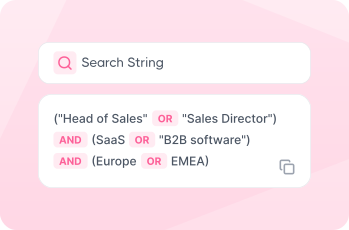
When your search finds the wrong people
LinkedIn Boolean Search Generator
Turn job titles and keywords into a search that finds the right people – no AND, OR, or NOT to memorize.