Had used Dripify before as well, and couldn’t stop vouching for it to my Senior. Dripify is that one tool which can make your Outbound Prospecting seamless. Excellent features, great UI/UX, and greater Onboarding + Support.
I’ve been using Dripify for four months and have found it very effective in building my network at a pace that I could not have imagined and to engage with new connections. The interface is easy to use and building campaigns and sequences is great.
Finding someone’s email address is no longer a challenge with Dripify’s email finder – quickly discover the contact information you need using two simple options
Find emails from CRM
The LinkedIn email finder is available across multiple pages in Dripify’s control panel, allowing you to quickly find a lead’s work email with a single click
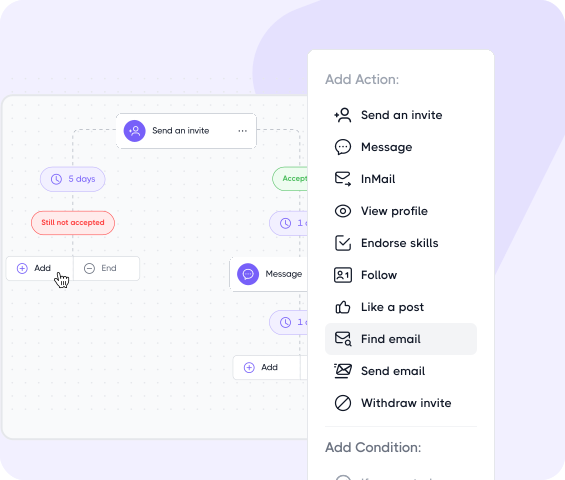
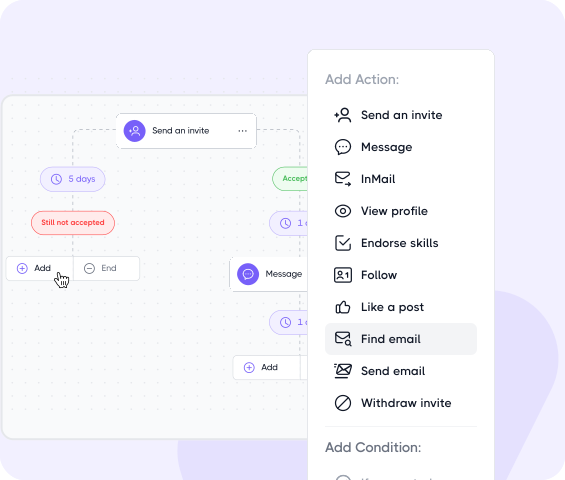
Use email finder in the sequence
Add the ‘Find Email’ action directly into your sequence to automatically discover corporate email addresses of leads
Here’s why 40,000+ companies successfully use Dripify for prospecting and finding corporate emails
Download CSV or launch a sequence
Export your enriched lead lists effortlessly into a CSV file or launch a multichannel outreach campaign that combines LinkedIn and email actions
Pay for success
With Dripify, you pay only for results – one email finder credit is deducted only when we successfully find and verify an email address. Plus, enjoy 100 free credits every month
GDPR and CCPA compliant
Enjoy peace of mind with Dripify’s commitment to unparalleled privacy and security. Our practices align with the requirements of GDPR and CCPA.
Pre-verification
After finding the email address, Dripify goes a step further with a pre-verification process to ensure maximum accuracy and deliverability
High success rate
Uncover business email addresses with a 61%+ success rate and build highly enriched lead lists for targeted outreach or marketing campaigns
Sync found emails across your stack
The LinkedIn Email Finder reveals work emails behind any profile with industry-leading accuracy and helps turn cold emails into real sales conversations
Simplify your life! Dripify makes it so easy to automate lead generation and nurturing. Their interface is easy to use and understand – all the data is laid out in a clear, concise format! The level of customization is great, and the built-in safety features are awesome.
Erynn S.
Executive Performance Specialist
Excellect automation those who are looking to leverage linkedin. Full automation ease to execute step by step process.
Nikhil Zelawat
Founder and CEO StocksEmoji
Dripify helped me to grow my contacts exponentially and cost effectively without spending a lot of my time
Greg Yank
Get your first 100 verified emails free
Try Dripify free today to find accurate work emails and build outreach sequences around prospects you can actually reach
Explore what else you can do with Dripify
Discover other award-winning features of Dripify, the most trusted LinkedIn automation tool
Automate cold emails
While LinkedIn automation is powerful, email outreach takes your prospecting even further by significantly expanding your reach
If Email Finder can’t find an email for a lead, you can run the email search again after 30 days. No credits are deducted for unsuccessful lookups. Once the 30-day period is up, a relaunch icon will appear on the lead so you can try again.
There’s a reason for the 30-day wait. The data Dripify’s email address finder relies on doesn’t stay the same forever. A lead might change jobs, new company information may become available, or previously missing data may get indexed during those days.
That means a lead that returned “Not found” the first time may still produce an email on your next attempt.
Every Dripify subscription comes with 100 email credits per month at no extra cost.
A credit is deducted only when Email Finder successfully finds and verifies an email address, whether you run the search manually or as part of a sequence. If Dripify can’t find a verified address, you don’t lose a credit.
Your 100 included credits refresh each month. If you run out before then, you don’t have to wait for the reset. You can buy additional credits anytime from the Email Finder pricing page inside your Dripify account.
Dripify finds verified business emails for roughly 45-55% of leads on average. Any email it finds is then verified before you can use it.
Keep in mind that 45-55% is an average, not something guaranteed for every lead list. The actual result may depend on how complete the leads’ profiles are.
Full LinkedIn profiles at well-established companies typically give Dripify more data to work with, whereas thin profiles or leads from very small companies tend to be harder to process.
A lead’s Dripify profile can contain three different email fields: LinkedIn email, Business email, and Custom email.
They tell you where each address came from, and they don’t necessarily contain the same email. A lead may have a personal address in one field and a work address in another.
LinkedIn email: collected by Dripify from the lead’s LinkedIn profile. It can be a personal rather than a work address.
Business email: a work email found and verified by Dripify’s Email Finder using sources beyond what is available on LinkedIn. This is generally the one you’ll want to use for outreach.
Custom email: an address you can add yourself, for example, from an old lead list, previous research, or another source.
It depends on which email addresses are available for that particular lead. You might have just a LinkedIn email, a Custom or Business email, or all three at the same time.
When there’s more than one option, Dripify doesn’t just pick one at random.There’s a set priority for which email address gets used when a Send Email action comes up in the sequence.
Custom emails come first, so if you’ve added an email yourself, Dripify will use that one. If there’s no Custom email, it moves to a Business email found through Email Finder. And if neither is available, Dripify falls back to the email address pulled from the lead’s LinkedIn profile.
So the order is simple: Custom email → Business email → LinkedIn email.
If Email Finder can’t find an email for a lead, you can run the email search again after 30 days. No credits are deducted for unsuccessful lookups. Once the 30-day period is up, a relaunch icon will appear on the lead so you can try again.
There’s a reason for the 30-day wait. The data Dripify’s email address finder relies on doesn’t stay the same forever. A lead might change jobs, new company information may become available, or previously missing data may get indexed during those days.
That means a lead that returned “Not found” the first time may still produce an email on your next attempt.
Yes. Besides campaigns, you can run Email Finder in three places, so you don’t need to build a campaign every time you want to find someone’s business email.
Lead’s profile: tap Find Email when you only need the business email for one particular lead.
Leads list: click Find Email directly from the list when you want to find emails without opening each lead’s profile individually.
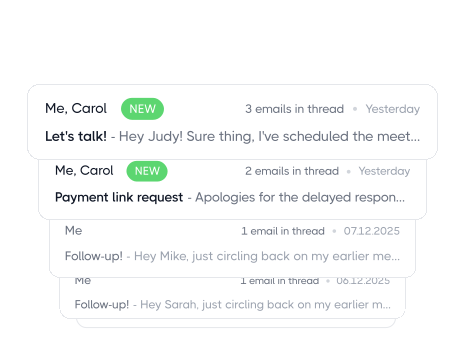
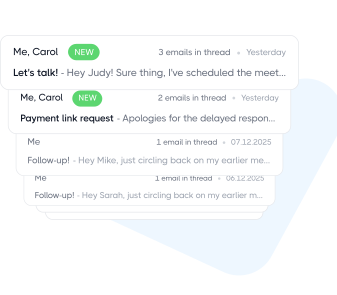
Inbox: hit the Find Email button right in a conversation with a lead. You’ll find it in the lead’s info panel next to the conversation, so you can search for their email without leaving the Inbox.
For automated outreach, you can still add the Find Email action to a sequence and let it run in the background. But for one-off searches or leads you’re already working with, the profile, leads list, and Inbox are the quicker options.
Yes. Any emails you find with Dripify’s email finder tool can be exported to CSV along with the rest of your lead data.
The export includes 30+ data points Dripify collects for each lead, so you’re not left with just a list of email addresses.
This is especially useful if you want to move those leads into your CRM, keep a separate prospect database, or run the email part of your outreach through another platform.
Yes. Email Finder works with 2nd and 3rd-degree connections, not just people already in your network.
It doesn’t rely on your connection degree to find an email. Instead, it uses the lead’s profile and company data to search for and verify their business address, so you can find someone’s email on LinkedIn before you’re connected.
This is particularly useful in multichannel sequences. You don’t have to wait for someone to accept your connection request before reaching them elsewhere. While your LinkedIn invite is still pending, Dripify can find their business email and continue the outreach there.
Step 1/2
Suggest an integration
Tell us the name of the software you wish to connect with Dripify and explain how exactly you intend to utilize this integration
Suggest an integration
Please fill the following fields to continue
Thanks a ton for suggesting your integration as the next one for us
We love that you took the initiative! We'll check it out and let you know the possibility to implement it in short term. Stay tuned for an update from us!
A/B test your message
Sign up here to be first in line when our exciting new feature rolls out
You’re on the list - stay tuned!
Awesome! Thanks for joining the waitlist! We'll reach out with an exclusive email when it's ready to launch. It might take a bit, but we promise to bring the news straight to you
Free 7-day trial. No credit card required. Cancel anytime
Select topics
Step 1/5
Thanks a ton for requesting your custom masterclass!
Ready to dive in? We hear you loud and clear! Just give our sales team a tiny bit of time to personalize your quote, and we'll be in touch within 24 hours.