7 Ways to Use the Dripify Open API to Automate Your LinkedIn Outreach

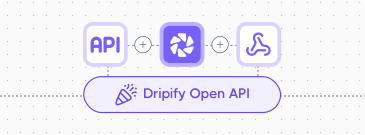
Have you ever wanted to connect Dripify to your favorite CRM or data enrichment platform and truly automate your outreach campaigns? Well, now you can.
With our new Open API, you can pull and push leads into Dripify without manually uploading CSV files every time. And that’s just one of many ways you can put it to use.
Contents:
Below, I break down the top 7 ways teams are already using our API.
Key Takeaways
- Dripify’s Open API is out, and it’s available on Advanced and Pro plans.
- For official guidelines, visit the Dripify API documentation and check our Help Center for a step-by-step walkthrough for finding the API key inside your account.
- Compared to webhooks, the Open API lets you pull a much wider range of data on request, including leads, campaigns, and team stats. You can also use the API to push leads directly into Dripify from other tools such as a CRM or a data enrichment platform.
API vs. Webhooks: How They Work Together

You may already be familiar with our Zapier and Make integrations. These are based on the so-called webhooks. You choose which events should trigger one (e.g., after a connection request is sent, after a message is sent, after a reply is received), and Dripify sends the relevant data out automatically whenever that event happens.
Open API works differently. Instead of waiting for Dripify to push data to you, you can request it whenever you need it. Plus, you can use the API to push data back to Dripify directly from your own tools.
In practice, teams use both methods in tandem.
For example, when a lead replies, you receive a webhook. Then, you send an API request to pull the detailed data on that lead and act on it.
Looking at it from a different angle, webhooks reduce the number of API requests you need to send – because you only need to pull data when a trigger actually fires, instead of sending multiple scheduled requests.
7 Ways to Use the Dripify Open API
1. Add New Leads to a Campaign Straight From Your CRM or Data Enrichment Platform
If you’re part of a bigger sales team, you’re likely generating leads using a variety of tools and storing them inside one CRM. Until now, to pass these leads into Dripify, you had to export them first, log into the app, and manually import a CSV file. With the Open API, you no longer have to do these things manually.
Using the Upload leads into a campaign endpoint, you can now send up to 1,000 LinkedIn profile URLs (or public IDs) directly into a campaign in one go. All you need to do is connect it to the platform you use to store or enrich your leads, and you can start moving them to a campaign whenever you’re ready.
Please note:
- Each API call creates a new lead list inside the campaign.
- Leads will be uploaded to the lead list when the campaign is launched.
- Our system automatically detects and collapses duplicate entries within the same request, so you don’t need to worry about deduping your files.
Pro tip:
If you’re using HubSpot as your CRM, we’ve just released a native integration. Learn more about it in our Help Center.
2. Check Whether a Lead Already Exists Before You Reach Out
Before adding a new lead to a campaign, you may want to double-check whether they’re already in your Dripify account. Perhaps they came in from a past campaign or a different list.
Using the Look a lead up by email or LinkedIn profile URL endpoint, you can check this immediately. All you need to do is send an email address or a LinkedIn URL, and the system will reply with information about any matching leads already in your account, along with their profile details and last recorded action. And if you want to know exactly which campaigns a matched lead belongs to, follow up with a call to Get a single lead by ID using the returned lead id.
Please note:
- The lookup value is sent in the request body, not the URL. Thus, it’s never exposed in logs or browser history.
- One value can match more than one lead, so in the response you’ll always receive a list, even for a single email or URL.
- If a single value would match more than 100 leads, the request is outright rejected. To get a proper response, you’ll need to narrow down your search. This is an unlikely scenario with a personal email or LinkedIn URL, but worth knowing if you’re testing with something broad.
3. Pull Live Campaign Performance Into Your Own Dashboard
Imagine you’re managing multiple campaigns or reporting results to someone who isn’t logging into Dripify. Until now, your best option was to screenshot your campaign performance report or manually export statistics. With the Open API, you have a more efficient solution.
Using the Get a campaign’s statistics endpoint, you’ll receive the same numbers you’d see in your Dripify dashboard, including: total leads, contacted leads, acceptance rate, reply rate, and lead status. You can also use it together with the list campaigns endpoint and pull all that information into a spreadsheet, a BI tool, or your own custom dashboard.
Please note:
- The rates you’ll see in the response are presented as percentages, rounded to one decimal place, so parse them as decimals rather than whole numbers.
- The leadStatusBreakdown counters are a live snapshot. Because of this, they won’t necessarily add up to totalLeads, since a lead can move between states between the moment you request one count and the next. Leads still being collected are not included in the totalLeads; they only appear under leadStatusBreakdown.uploading.
4. Sync Qualified Leads Into Your CRM on Your Own Schedule
Your webhook already tells you the moment something happens with an individual lead. But, to build a more complete sync, one that pulls data across all your campaigns whenever you need it, you’ll want to add the API into the mix.
Using the list leads endpoint, you can retrieve all your leads from a specific list, campaign, or your whole account. In the response, you’ll also find each lead’s most recent action or the latest event in their sequence.
For any lead you want more information on, you can use their id to look them up individually. The call will also tell you which campaigns they’re in, along with their status in each. Once you have that, you can push it back into your CRM to keep all your lead information updated and synced.
Please note:
- If, in your call, you provide both campaignId and leadListId, leadListId will win, and campaignId will be ignored, since a lead list already belongs to a single campaign.
5. Check the Lead Lists Inside a Campaign
Let’s say you’re running an outreach campaign for a client and want to report the number of generated leads, along with additional information on how each list source is performing.
With the List a campaign’s lead lists endpoint, you can easily check every lead list in a chosen campaign, along with its name, creation date, current lead count, how many it’s still meant to collect, and its search status. This tells you whether your lists are still actively searching for new leads or have completed the search.
Please note:
- The response only tells you about the lists themselves, and their counts, names, and status. To retrieve actual leads inside a list, you’ll still want to use list leads with the leadListId filter.
6. Follow a Lead’s Timeline Without Opening Your Dashboard
Sometimes you just want to check on an individual lead rather than the whole campaign. Instead of searching for them in your Dripify dashboard, you can pull that information directly via API.
With the list a lead’s activity log endpoint, you can retrieve a lead’s timeline events, starting with the newest first. Each event comes with additional information, including its type, the campaign it happened in, and when it occurred. You can use this to build something as simple as a Slack notification when a key lead’s status changes, or as complex as a full activity feed inside your own tool.
Please note:
- This is the event timeline, not the message content itself. However, retrieving the full conversation history is already on our roadmap, so stay tuned!
7. Get Cross-Account Visibility for Teams and Agencies
Let’s say you’re managing a sales team and want to see how each rep is doing. While you could check each account individually, a more efficient way is to use the List teams the caller belongs to and list team members endpoints.
The first returns every team you belong to, along with additional information like the number of active campaigns, unread messages, acceptance rate, and reply rate. The latter breaks it down even further. It shows you, for a given team, the team members, their roles, when they were last active, and their active campaign count, own acceptance rate, reply rate, and unread messages.
Using this information, you can build a custom dashboard that shows performance across every seat all at once, without requiring you to log into each one.
Please note:
- The list team members only works if you’re the team’s owner or manager. Everyone else will get a 404, same as if the team didn’t exist.
- The ordering in list team members can shift depending on live subscription state, so treat it as short-lived.
What You Can Expect From Future Releases
This is the very first version of the Dripify Open API. However, thanks to your requests, we’ve got more exciting things coming on our roadmap:
- Exporting a lead’s complete messaging history
- Sending LinkedIn messages through the API
- Managing lead tags
- Adding custom lead fields
As always, we’d love to hear your feedback. If you see that there’s a capability you need that isn’t on this list, reach out to our support team at support@dripify.com.
Get Started With the Dripify Open API
Ready to try any of the above ideas?
Then, go ahead and generate your API key from Settings → Integrations inside Dripify.
Just keep in mind that the Open API is available on the Advanced and Pro plans only.
If you’re currently on the Basic plan and would like to give Open API a go, please head over to your account and upgrade your plan.


![Best Chrome Extensions for LinkedIn Lead Generation 2026 [8 Lead-Hunting Picks Inside]](https://dripify.com/wp-content/uploads/2026/07/Best-Chrome-Extensions-for-Lead-Generation-on-LinkedIn-2026-1-png-1.avif)


Prospect and close deals at scale
Run your LinkedIn or email campaign today, see results in 48 hours.
Free 7-day trial included
Book a demo (for teams of 10+)