Create an Event on LinkedIn [Tips and Examples]

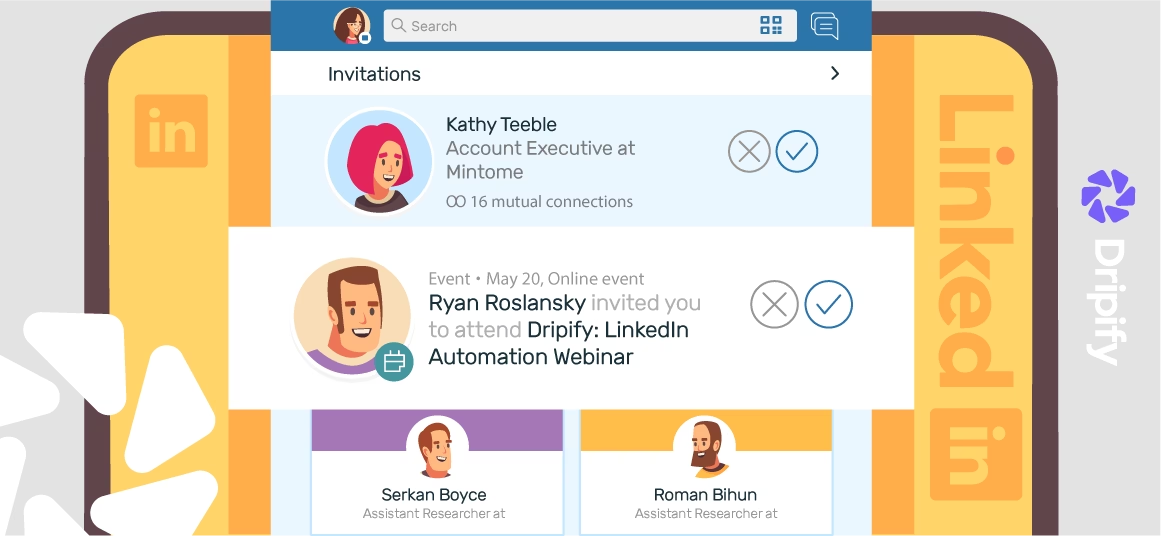
LinkedIn Events feature helps users interact and engage with their audience.
If you don’t know much about LinkedIn Events, this article is perfect for you!
Contents:
What are LinkedIn Events?
LinkedIn Events is an innovative feature on LinkedIn that helps organizations foster deep relationships with their target audience.
How Do LinkedIn Events Work?
If you want to connect with your audience and establish yourself as a thought leader, you must benefit from LinkedIn’s brand-new feature.
Here’s how LinkedIn Events work to expose you to more audiences:
- Organic on-page discovery;
- Share and notify page followers of your Event;
- Personalized recommendations via your ‘My Network’ tab;
- A unique frame to make the LinkedIn Event stand out;
- Customized recommendation to user’s through email.
Why Do I Need to Use LinkedIn Events?
Unsure of why you should use LinkedIn Events? Here are several reasons that will have you wondering why you haven’t used the feature yet:
- LinkedIn Events are a free and effective way of making your upcoming event standout;
- LinkedIn Events are easy to set up;
- The feature allows you to integrate an external link to your landing page or ticketing website to encourage viewers to make a purchase;
- You can send personalized invites to your contact list;
- LinkedIn lets you post a LinkedIn Event from your profile or Company page.
How Can I Set Up a LinkedIn Event?
Contrary to popular belief, setting up a LinkedIn Event to attract attendees is not challenging. Here’s a step-by-step guide to creating events on LinkedIn:
Creating a LinkedIn Event on the Web
Follow these steps on your browser:
Become a Page Admin
LinkedIn only lets LinkedIn Page admin set up an event on behalf of the company.
If you’re not a Page admin, request your company’s social media manager or digital marketer to set you up like one.
Locate the ‘Create an Event’ Button and Enter the Required Info
After becoming an Admin, navigate the ‘Admin Tools’ menu.
Here, you’ll notice the ‘Create an Event’ button. Click on it to allow LinkedIn to take you to its creation form.
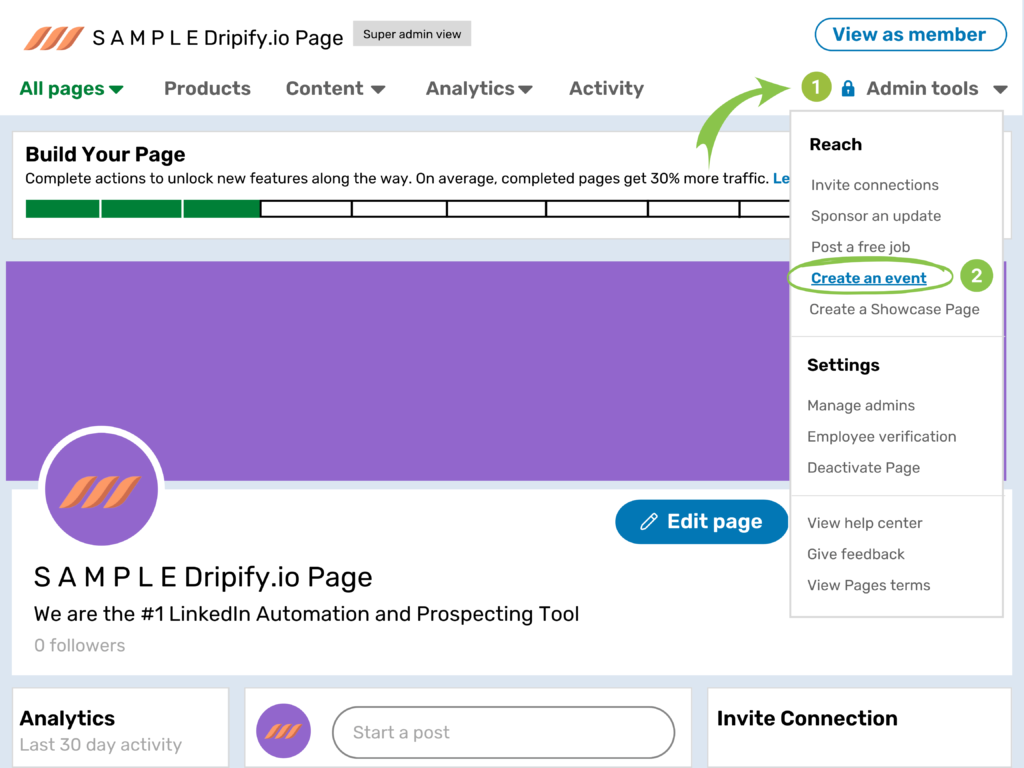
The platform requires you to provide the following information:
- The Event’s Name;
- Logo (400 x 400 limit);
- Banner Image (1764 x 444 pixels recommended);
- Location (No matter if you’re hosting online or in-person);
- The Venue, Date, Time, and Time Zone;
- Description (Up to 5000 characters);
- Speakers;
- External URLs (ticketing websites, landing pages, website);
- The Visibility of the Event (can be edited later).
When adding information, keep these tips in mind:
- Ensure the Organizer of the Event is the Company Page;
- Toggle the button to ‘Online-Only’ if you’re hosting a virtual event.
Attract Your Audience
LinkedIn automatically generates a unique URL to match your Event. The URL is shareable and the perfect tool for generating awareness.
You can generate excitement about your upcoming Event by following these steps:
- Post the URL on your post alongside a compelling headline to grab your target audience’s attention;
- Use job, industry, seniority, or location filters to target your viewers;
- Share the URL with your networks, such as friends and past colleagues that you believe would find the Event interesting;
- Consider investing in email and paid ads to capture leads.
Engage Your Audience
LinkedIn Events allows organizers to engage and nurture attendees before and after the Event continually.
You can leverage the Event page to create or join discussions relevant to your topic. In addition, you can recommend top posts in your event feed and send notifications to registered attendees.
Launch Your Event
Lastly, it’s time for the big moment!
If you’re conducting a virtual event, you’ll want to keep your third-party live-streaming tool ready. We recommend ensuring your Wi-Fi is strong and the broadcasting platform robust several minutes before you go live. In addition, you may send email notifications to remind users your Event is starting.
Creating a LinkedIn Event on Mobile
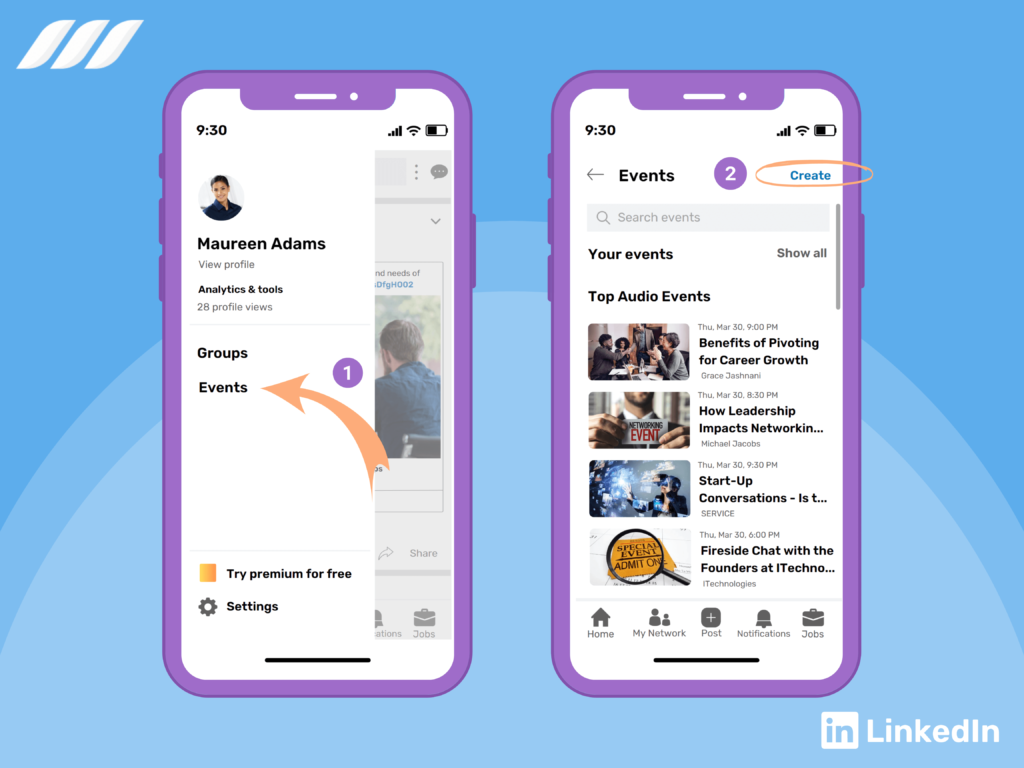
If you’re using LinkedIn’s mobile app, you’ll have to follow slightly different steps:
- Click on your profile picture;
- Locate the ‘Events’ button;
- Choose the ‘Create’ option in the upper-right corner;
- Enter the required information.
Select one of the following options in event type:
- Online – Indicates you’re hosting a virtual event;
- In-person – Requires you to additional info like venue and location.
Choose the Event Format, such as:
- LinkedIn Live;
- External Event Link;
- Tap on the ‘Use a LinkedIn Registration Form’ button to allow users to register for your Event;
- Click on the ‘Pencil’ icon to upload a cover image and banner image;
- Tap on the ‘Done’ button and decide who you want to share it with.
Adjusting LinkedIn Event’s Privacy Settings
LinkedIn also lets you choose between setting your Event as public or private. You can find these two options under the ‘Event Privacy’ button.
Here’s how the privacy settings affect your Event:
Public Events
- Accessible by any LinkedIn Member;
- Your Invitee’s Network can register to attend;
- Any LinkedIn Profile can share the Event, mark themselves as ‘attending,’ or invite their friends/colleagues;
- Attendees can access your Attendees List.
Private Events
- Only specific LinkedIn Users can access the Event URL;
- Attending Requests need the approval of the organizer;
- Organizers can enable or disable attendees from inviting their connections.
How Do I Edit a LinkedIn Event?
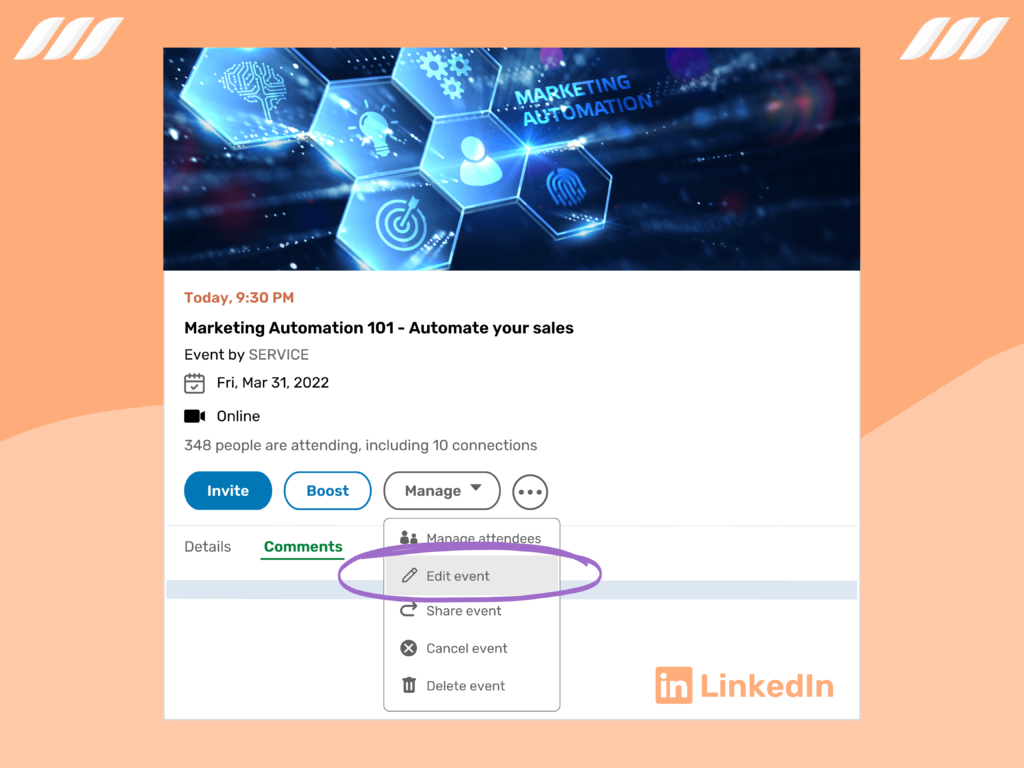
After you’ve created your Event, LinkedIn allows you to edit the following information:
- Event Name;
- Logo;
- Banner Image;
- Location;
- Venue;
- Scheduled Date and Time;
- Description and Speakers;
- External URLs.
If you want any of this information, you can follow these steps:
- Navigate the ‘Events’ button on the menu panel;
- Locate the drop-down menu and tap on the Event you wish to edit;
- Once the event page loads, choose the ‘Edit’ button on the top-right of the page (it’ll appear as ‘Manage Event’ if you’re using your mobile.’;
- Locate the drop-down menu and click on the ‘Edit Event’ button;
- Make the required changes and select the ‘Done’ option to save changes.
LinkedIn Event Examples
LinkedIn allows users to organize various types of Events based on their audience. For instance, you can schedule a:
- Workshop or Training;
- A Fun Chat to Connect with Your College Alumni;
- A Fireside or Panel to Discuss a Topic;
- An Event to Discuss Best Practices in a particular industry.
Conduct a Fireside Chat with a Colleague or Executive
Motivate and inspire your audience to keep working hard by gaining knowledge from your company’s leading experts. Hearing your executive leaders discuss the current market situation and how people can master it can reassure your audience.
Host an ‘Ask me Anything’ Session with Industry Leaders
Drive brand awareness and engage with your audience by hosting an ‘Ask me Anything’ session with industry leaders. Since AMA sessions are more authentic, interactive, and transparent, you’re more likely to attract a wider audience.
Unveil a New Innovation
Hosting a live event is ideal for showcasing your new and upcoming product. With the help of interactive learning, you can grab the attention of your target audience and encourage more people to check out your product.
What are the Benefits of LinkedIn Events?
Now that we’ve discussed how you can create a LinkedIn event, let’s talk about some of the benefits of setting one up:
It’s Completely Free!
The best part about using LinkedIn Events is that it’s an accessible yet fantastic way of creating buzz about your upcoming session. That way, you can drive awareness and encourage members to sign up without spending a penny. You can even send a personalized invite to your connections to broaden your audience.
Showcase Your Expertise or Product/Brand
Since LinkedIn is a professional networking channel, it offers the perfect environment for newbies and experts to put their talent in the spotlight. You can host events to build your community or teach users about your new product or brand.
Form Deep Connections
LinkedIn is a business-oriented social network perfect for professionals seeking new opportunities. Therefore, the platform is perfect for users to build a community — functioning much like a specialized customer community software — to foster deep connections via live events.
Promote Your Event at Every Step
With LinkedIn’s innovative features, you can engage your audience and promote your Event before, during, and after the show. Also, you can choose between organic and paid tools.
Benefit from Event Analytics
LinkedIn offers Event analytics to enable marketers to identify their Event’s performance. It also lets you measure your ROI.
Tips to Increase Awareness About Your LinkedIn Event
Flash News: creating your LinkedIn Event is not the only thing you need to do. If you set up a LinkedIn Event and forget to promote it, you’ll be unlikely to attract a diverse audience. To encourage more users to attend your Event, you must improve its discoverability.
Here are several tips to help promote your upcoming LinkedIn Event:
Invite Your Connections to Attend the Event
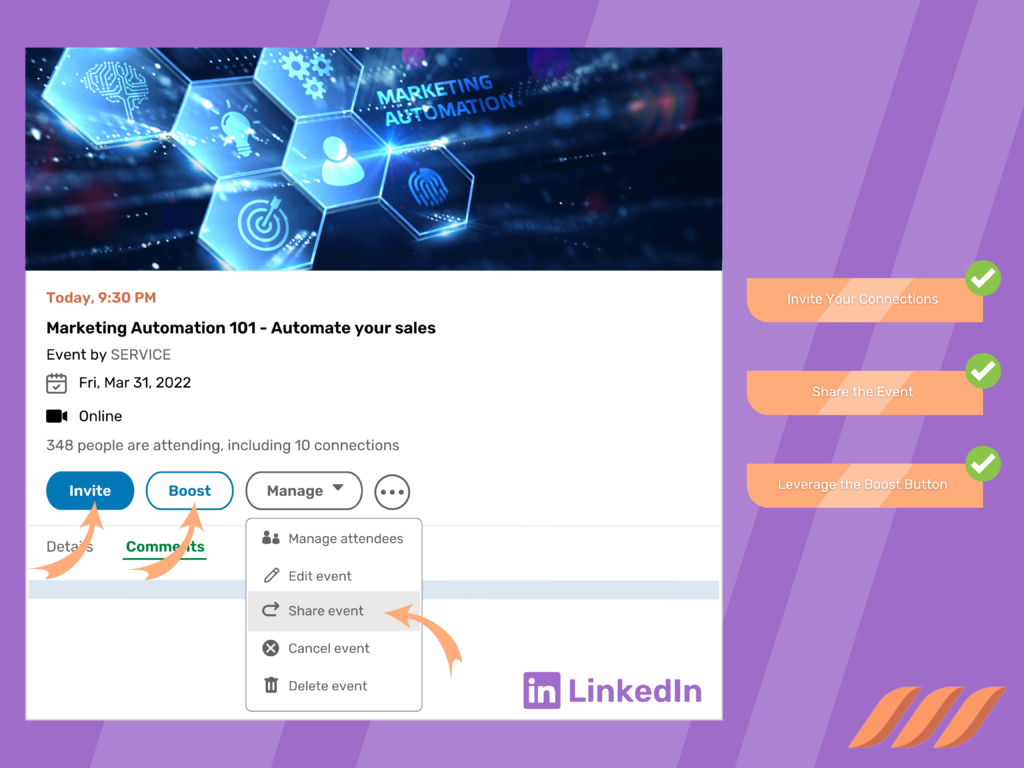
Once you’ve created your LinkedIn Event, you’ll notice an ‘Invite’ button. Click on it to trigger a pop-up box comprising your network connections. Since LinkedIn doesn’t offer an ‘Invite All’ button, you’ll have to choose profiles manually.
Here are several ways you can narrow your list:
- Enter the names of specific members in the Search Box;
- Filter connections by using Location, Company, School, or Industry filters;
- Choose Management Consulting, Health Wellness and Fitness, Financial Services, or Professional Training and Coaching if you want to create an industry-specific Event;
- After adding LinkedIn users to the list, click on the ‘Done’ button to send invites.
Share the Event with Your Network
Generate awareness about your LinkedIn Event by sharing it with your LinkedIn connections.
Start by clicking on the ‘Share’ button next to the ‘Let Your Network Know About This Event’ option. A pop-up box appears alongside a draft message that includes your event name. Ensure you customize it to match your brand voice.
If your LinkedIn Event includes tickets, add information about it in the draft. Finish it by adding three relevant hashtags that will improve your discoverability.
Leverage the Boost Button
LinkedIn recently introduced the ‘Boost’ button to the ‘LinkedIn Events’ page. With this tool, you can promote your Event, showcase it in front of your target audience, and encourage more registrations.
Follow these steps to maximize the number of attendees in your next Event:
- Select the ‘Boost’ button on the Events Page;
- Choose your target audience;
- Create the campaign schedule and budget;
- Enter the payment information to create the event ad.
Your LinkedIn Event Ad appears in your target audience’s feed. It features the date, location, and other information to help members sign up instantly.
How Can Companies Use LinkedIn Events to Promote Virtual Events?
We’ve covered that LinkedIn Events are an excellent way of promoting your virtual events. Here are several ways your company can use LinkedIn to promote an event:
- Post updates about your Event on your profile;
- Ask your employees to share the Event on their profiles;
- Include a URL that leads to a landing page or ticketing website to encourage users to click;
- Connect with LinkedIn Event attendees who aren’t part of your LinkedIn network to foster deep relationships;
- Mention speakers in LinkedIn posts to encourage more people to check out your Event.
How Do I Engage with My LinkedIn Event Attendees?
Encouraging people to show up to your LinkedIn Event requires you to engage and interact with the attendees.
How do you engage with them? Here’s how:
- Sending Connection Requests – Nurture deep relations with your LinkedIn Event Attendees by sending them a highly-personalized connection request;
- Sharing Posts on Your Feed – LinkedIn Event pages show feeds only attendees can access. Leverage this feed page to generate excitement about your Event and show appreciation to attendees;
- Request Speakers to Create Posts – If your live sessions include speakers, ask them to post about the Event on their page. That way, you can tap into a new audience.
What’s the Difference Between LinkedIn Events and LinkedIn Live?
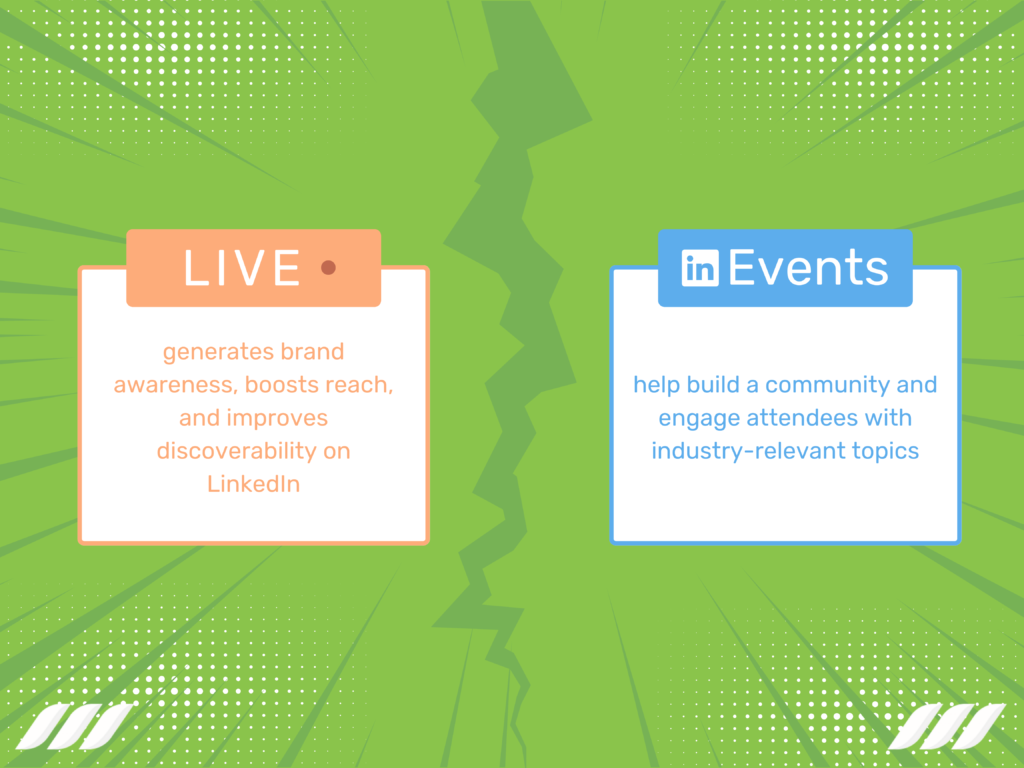
Most users confuse LinkedIn Events with LinkedIn Live. However, the two live streaming features are quite different. Let’s take a look at both tools:
LinkedIn Live
An innovative live-streaming feature, LinkedIn Live allows you to stream live sessions and videos to your followers.
The tool generates brand awareness, boosts reach, and improves discoverability on LinkedIn.
Best practices to remember when using LinkedIn Live include:
- Collecting questions from your LinkedIn followers before the live-stream;
- Interact with your audience during the live session;
- Edit highlights from your recording and post them on your LinkedIn page alongside compelling headlines;
- Remember to stream one to two times per week.
LinkedIn Events
LinkedIn Events help build a community and engage attendees with industry-relevant topics. You can interact with members before, during, and after the stream.
Here are several best practices to leverage when using LinkedIn Events:
- Ask interactive questions from your audience during the Event;
- Request the attendees to provide feedback after the live-session ends.
Conclusion
Now you can create and promote a LinkedIn Event, it’s time to try it to attract more followers and improve brand awareness. LinkedIn Events is a fantastic tool for developing strong relations with your target audience.

![Best Chrome Extensions for LinkedIn Lead Generation 2026 [8 Lead-Hunting Picks Inside]](https://dripify.com/wp-content/uploads/2026/07/Best-Chrome-Extensions-for-Lead-Generation-on-LinkedIn-2026-1-png-1.avif)


Prospect and close deals at scale
Run your LinkedIn or email campaign today, see results in 48 hours.
Free 7-day trial included
Book a demo (for teams of 10+)